xiaohongshu-mcp
小红书向けのMCPサーバー。ログイン確認や画像付き投稿の公開などを自動化・支援するツール。
mcpmcp-serverxiaohongshuxiaohongshu-mcpsocial-mediaautomationimage-uploadvideo-uploadapicontent-management
README
# xiaohongshu-mcp
<!-- ALL-CONTRIBUTORS-BADGE:START - Do not remove or modify this section -->
[](#contributors-)
<!-- ALL-CONTRIBUTORS-BADGE:END -->
[](./DONATIONS.md)
[](./DONATIONS.md)
[](https://hub.docker.com/r/xpzouying/xiaohongshu-mcp)
MCP for 小红书/xiaohongshu.com。
- 我的博客文章:[haha.ai/xiaohongshu-mcp](https://www.haha.ai/xiaohongshu-mcp)
**遇到任何问题,务必要先看 [各种疑难杂症](https://github.com/xpzouying/xiaohongshu-mcp/issues/56)**。
上面的 **疑难杂症** 列表后,还是解决不了你的部署问题,那么强烈推荐使用我写的另外一个工具:[xpzouying/x-mcp](https://github.com/xpzouying/x-mcp),这个工具不需要你进行部署,只需要通过浏览器插件就能驱动你的 MCP,对于非技术同学来说更加友好。
## Star History
[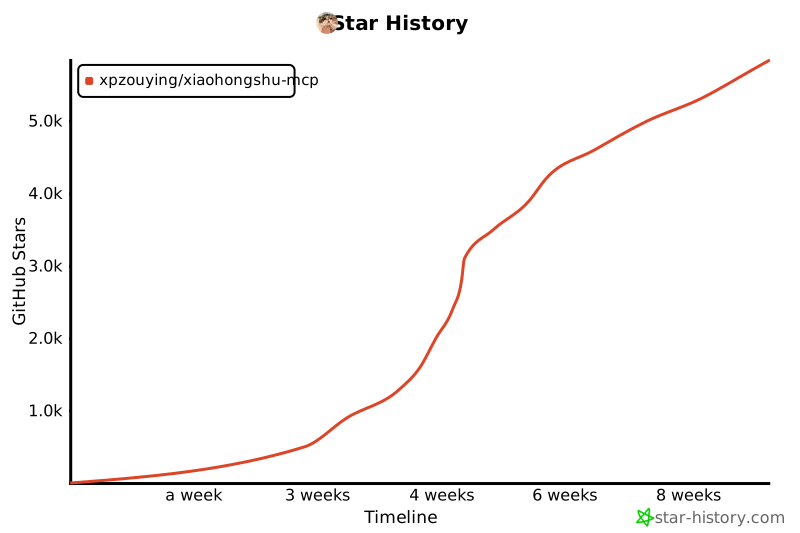](https://www.star-history.com/#xpzouying/xiaohongshu-mcp&Timeline)
## 赞赏支持
本项目所有的赞赏都会用于慈善捐赠。所有的慈善捐赠记录,请参考 [DONATIONS.md](./DONATIONS.md)。
**捐赠时,请备注 MCP 以及名字。**
如需更正/撤回署名,请开 Issue 或通过邮箱联系。
**支付宝(不展示二维码):**
通过支付宝向 **xpzouying@gmail.com** 赞赏。
**微信:**
<img src="donate/wechat@2x.png" alt="WeChat Pay QR" width="260" />
## 项目简介
**主要功能**
> 💡 **提示:** 点击下方功能标题可展开查看视频演示
<details>
<summary><b>1. 登录和检查登录状态</b></summary>
第一步必须,小红书需要进行登录。可以检查当前登录状态。
**登录演示:**
https://github.com/user-attachments/assets/8b05eb42-d437-41b7-9235-e2143f19e8b7
**检查登录状态演示:**
https://github.com/user-attachments/assets/bd9a9a4a-58cb-4421-b8f3-015f703ce1f9
</details>
<details>
<summary><b>2. 发布图文内容</b></summary>
支持发布图文内容到小红书,包括标题、内容描述和图片。
**图片支持方式:**
支持两种图片输入方式:
1. **HTTP/HTTPS 图片链接**
```
["https://example.com/image1.jpg", "https://example.com/image2.png"]
```
2. **本地图片绝对路径**(推荐)
```
["/Users/username/Pictures/image1.jpg", "/home/user/images/image2.png"]
```
**为什么推荐使用本地路径:**
- ✅ 稳定性更好,不依赖网络
- ✅ 上传速度更快
- ✅ 避免图片链接失效问题
- ✅ 支持更多图片格式
**发布图文帖子演示:**
https://github.com/user-attachments/assets/8aee0814-eb96-40af-b871-e66e6bbb6b06
</details>
<details>
<summary><b>3. 发布视频内容</b></summary>
支持发布视频内容到小红书,包括标题、内容描述和本地视频文件。
**视频支持方式:**
仅支持本地视频文件绝对路径:
```
"/Users/username/Videos/video.mp4"
```
**功能特点:**
- ✅ 支持本地视频文件上传
- ✅ 自动处理视频格式转换
- ✅ 支持标题、内容描述和标签
- ✅ 等待视频处理完成后自动发布
**注意事项:**
- 仅支持本地视频文件,不支持 HTTP 链接
- 视频处理时间较长,请耐心等待
- 建议视频文件大小不超过 1GB
</details>
<details>
<summary><b>4. 搜索内容</b></summary>
根据关键词搜索小红书内容。
**搜索帖子演示:**
https://github.com/user-attachments/assets/03c5077d-6160-4b18-b629-2e40933a1fd3
</details>
<details>
<summary><b>5. 获取推荐列表</b></summary>
获取小红书首页推荐内容列表。
**获取推荐列表演示:**
https://github.com/user-attachments/assets/110fc15d-46f2-4cca-bdad-9de5b5b8cc28
</details>
<details>
<summary><b>6. 获取帖子详情(包括互动数据和评论)</b></summary>
获取小红书帖子的完整详情,包括:
- 帖子内容(标题、描述、图片等)
- 用户信息
- 互动数据(点赞、收藏、分享、评论数)
- 评论列表及子评论
**⚠️ 重要提示:**
- 需要提供帖子 ID 和 xsec_token(两个参数缺一不可)
- 这两个参数可以从 Feed 列表或搜索结果中获取
- 必须先登录才能使用此功能
**获取帖子详情演示:**
https://github.com/user-attachments/assets/76a26130-a216-4371-a6b3-937b8fda092a
</details>
<details>
<summary><b>7. 发表评论到帖子</b></summary>
支持自动发表评论到小红书帖子。
**功能说明:**
- 自动定位评论输入框
- 输入评论内容并发布
- 支持 HTTP API 和 MCP 工具调用
**⚠️ 重要提示:**
- 需要先登录才能使用此功能
- 需要提供帖子 ID、xsec_token 和评论内容
- 这些参数可以从 Feed 列表或搜索结果中获取
**发表评论演示:**
https://github.com/user-attachments/assets/cc385b6c-422c-489b-a5fc-63e92c695b80
</details>
<details>
<summary><b>8. 获取用户个人主页</b></summary>
获取小红书用户的个人主页信息,包括用户基本信息和笔记内容。
**功能说明:**
- 获取用户基本信息(昵称、简介、头像等)
- 获取关注数、粉丝数、获赞量统计
- 获取用户发布的笔记内容列表
- 支持 HTTP API 和 MCP 工具调用
**⚠️ 重要提示:**
- 需要先登录才能使用此功能
- 需要提供用户 ID 和 xsec_token
- 这些参数可以从 Feed 列表或搜索结果中获取
**返回信息包括:**
- 用户基本信息:昵称、简介、头像、认证状态
- 统计数据:关注数、粉丝数、获赞量、笔记数
- 笔记列表:用户发布的所有公开笔记
</details>
**小红书基础运营知识**
- **标题:(非常重要)小红书要求标题不超过 20 个字**
- **正文:(非常重要):正文不能超过 1000 个字**
- 当前支持图文发送以及视频发送:从推荐的角度看,图文的流量会比视频以及纯文字的更好。
- (低优先级)可以考虑纯文字的支持。1. 个人感觉纯文字会大大增加运营的复杂度;2. 纯文字在我的使用场景的价值较低。
- Tags:现已支持。添加合适的 Tags 能带来更多的流量。
- 根据本人实操,小红书每天的发帖量应该是 **50 篇**。
- **(非常重要)小红书的同一个账号不允许在多个网页端登录**,如果你登录了当前 xiaohongshu-mcp 后,就不要再在其他的网页端登录该账号,否则就会把当前 MCP 的账号“踢出登录”。你可以使用移动 App 端进行查看当前账号信息。
**风险说明**
1. 该项目是在自己的另外一个项目的基础上开源出来的,原来的项目稳定运行一年多,没有出现过封号的情况,只有出现过 Cookies 过期需要重新登录。
2. 我是使用 Claude Code 接入,稳定自动化运营数周后,验证没有问题后开源。
该项目是基于学习的目的,禁止一切违法行为。
**实操结果**
第一天点赞/收藏数达到了 999+,
<img width="386" height="278" alt="CleanShot 2025-09-05 at 01 31 55@2x" src="https://github.com/user-attachments/assets/4b5a283b-bd38-45b8-b608-8f818997366c" />
<img width="350" height="280" alt="CleanShot 2025-09-05 at 01 32 49@2x" src="https://github.com/user-attachments/assets/4481e1e7-3ef6-4bbd-8483-dcee8f77a8f2" />
一周左右的成果
<img width="1840" height="582" alt="CleanShot 2025-09-05 at 01 33 13@2x" src="https://github.com/user-attachments/assets/fb367944-dc48-4bbd-8ece-934caa86323e" />
## 1. 使用教程
### 1.1. 快速开始(推荐)
**方式一:下载预编译二进制文件**
直接从 [GitHub Releases](https://github.com/xpzouying/xiaohongshu-mcp/releases) 下载对应平台的二进制文件:
**主程序(MCP 服务):**
- **macOS Apple Silicon**: `xiaohongshu-mcp-darwin-arm64`
- **macOS Intel**: `xiaohongshu-mcp-darwin-amd64`
- **Windows x64**: `xiaohongshu-mcp-windows-amd64.exe`
- **Linux x64**: `xiaohongshu-mcp-linux-amd64`
**登录工具:**
- **macOS Apple Silicon**: `xiaohongshu-login-darwin-arm64`
- **macOS Intel**: `xiaohongshu-login-darwin-amd64`
- **Windows x64**: `xiaohongshu-login-windows-amd64.exe`
- **Linux x64**: `xiaohongshu-login-linux-amd64`
使用步骤:
```bash
# 1. 首先运行登录工具
chmod +x xiaohongshu-login-darwin-arm64
./xiaohongshu-login-darwin-arm64
# 2. 然后启动 MCP 服务
chmod +x xiaohongshu-mcp-darwin-arm64
./xiaohongshu-mcp-darwin-arm64
```
**⚠️ 重要提示**:首次运行时会自动下载无头浏览器(约 150MB),请确保网络连接正常。后续运行无需重复下载。
**方式二:源码编译**
<details>
<summary>源码编译安装详情</summary>
依赖 Golang 环境,安装方法请参考 [Golang 官方文档](https://go.dev/doc/install)。
设置 Go 国内源的代理,
```bash
# 配置 GOPROXY 环境变量,以下三选一
# 1. 七牛 CDN
go env -w GOPROXY=https://goproxy.cn,direct
# 2. 阿里云
go env -w GOPROXY=https://mirrors.aliyun.com/goproxy/,direct
# 3. 官方
go env -w GOPROXY=https://goproxy.io,direct
```
</details>
**方式三:使用 Docker 容器(最简单)**
<details>
<summary>Docker 部署详情</summary>
使用 Docker 部署是最简单的方式,无需安装任何开发环境。
**1. 从 Docker Hub 拉取镜像(推荐)**
我们提供了预构建的 Docker 镜像,可以直接从 Docker Hub 拉取使用:
```bash
# 拉取最新镜像
docker pull xpzouying/xiaohongshu-mcp
```
Docker Hub 地址:[https://hub.docker.com/r/xpzouying/xiaohongshu-mcp](https://hub.docker.com/r/xpzouying/xiaohongshu-mcp)
**2. 使用 Docker Compose 启动(推荐)**
我们提供了配置好的 `docker-compose.yml` 文件,可以直接使用:
```bash
# 下载 docker-compose.yml
wget https://raw.githubusercontent.com/xpzouying/xiaohongshu-mcp/main/docker/docker-compose.yml
# 或者如果已经克隆了项目,进入 docker 目录
cd docker
# 启动服务
docker compose up -d
# 查看日志
docker compose logs -f
# 停止服务
docker compose stop
```
**3. 自己构建镜像(可选)**
```bash
# 在项目根目录运行
docker build -t xpzouying/xiaohongshu-mcp .
```
**4. 配置说明**
Docker 版本会自动:
- 配置 Chrome 浏览器和中文字体
- 挂载 `./data` 用于存储 cookies
- 挂载 `./images` 用于存储发布的图片
- 暴露 18060 端口供 MCP 连接
详细使用说明请参考:[Docker 部署指南](./docker/README.md)
</details>
Windows 遇到问题首先看这里:[Windows 安装指南](./docs/windows_guide.md)
### 1.2. 登录
第一次需要手动登录,需要保存小红书的登录状态。
**使用二进制文件**:
```bash
# 运行对应平台的登录工具
./xiaohongshu-login-darwin-arm64
```
**使用源码**:
```bash
go run cmd/login/main.go
```
### 1.3. 启动 MCP 服务
启动 xiaohongshu-mcp 服务。
**使用二进制文件**:
```bash
# 默认:无头模式,没有浏览器界面
./xiaohongshu-mcp-darwin-arm64
# 非无头模式,有浏览器界面
./xiaohongshu-mcp-darwin-arm64 -headless=false
```
**使用源码**:
```bash
# 默认:无头模式,没有浏览器界面
go run .
# 非无头模式,有浏览器界面
go run . -headless=false
```
## 1.4. 验证 MCP
```bash
npx @modelcontextprotocol/inspector
```

运行后,打开红色标记的链接,配置 MCP inspector,输入 `http://localhost:18060/mcp` ,点击 `Connect` 按钮。

按照上面配置 MCP inspector 后,点击 `List Tools` 按钮,查看所有的 Tools。
## 1.5. 使用 MCP 发布
### 检查登录状态

### 发布图文
示例中是从 https://unsplash.com/ 中随机找了个图片做测试。

### 搜索内容
使用搜索功能,根据关键词搜索小红书内容:

## 2. MCP 客户端接入
本服务支持标准的 Model Context Protocol (MCP),可以接入各种支持 MCP 的 AI 客户端。
### 2.1. 快速开始
#### 启动 MCP 服务
```bash
# 启动服务(默认无头模式)
go run .
# 或者有界面模式
go run . -headless=false
```
服务将运行在:`http://localhost:18060/mcp`
#### 验证服务状态
```bash
# 测试 MCP 连接
curl -X POST http://localhost:18060/mcp \
-H "Content-Type: application/json" \
-d '{"jsonrpc":"2.0","method":"initialize","params":{},"id":1}'
```
#### Claude Code CLI 接入
```bash
# 添加 HTTP MCP 服务器
claude mcp add --transport http xiaohongshu-mcp http://localhost:18060/mcp
# 检查 MCP 是否添加成功(确保 MCP 已经启动的前提下,运行下面命令)
claude mcp list
```
### 2.2. 支持的客户端
<details>
<summary><b>Claude Code CLI</b></summary>
官方命令行工具,已在上面快速开始部分展示:
```bash
# 添加 HTTP MCP 服务器
claude mcp add --transport http xiaohongshu-mcp http://localhost:18060/mcp
# 检查 MCP 是否添加成功(确保 MCP 已经启动的前提下,运行下面命令)
claude mcp list
```
</details>
<details>
<summary><b>Cursor</b></summary>
#### 配置文件的方式
创建或编辑 MCP 配置文件:
**项目级配置**(推荐):
在项目根目录创建 `.cursor/mcp.json`:
```json
{
"mcpServers": {
"xiaohongshu-mcp": {
"url": "http://localhost:18060/mcp",
"description": "小红书内容发布服务 - MCP Streamable HTTP"
}
}
}
```
**全局配置**:
在用户目录创建 `~/.cursor/mcp.json` (同样内容)。
#### 使用步骤
1. 确保小红书 MCP 服务正在运行
2. 保存配置文件后,重启 Cursor
3. 在 Cursor 聊天中,工具应该自动可用
4. 可以通过聊天界面的 "Available Tools" 查看已连接的 MCP 工具
**Demo**
插件 MCP 接入:

调用 MCP 工具:(以检查登录状态为例)

</details>
<details>
<summary><b>VSCode</b></summary>
#### 方法一:使用命令面板配置
1. 按 `Ctrl/Cmd + Shift + P` 打开命令面板
2. 运行 `MCP: Add Server` 命令
3. 选择 `HTTP` 方式。
4. 输入地址: `http://localhost:18060/mcp`,或者修改成对应的 Server 地址。
5. 输入 MCP 名字: `xiaohongshu-mcp`。
#### 方法二:直接编辑配置文件
**工作区配置**(推荐):
在项目根目录创建 `.vscode/mcp.json`:
```json
{
"servers": {
"xiaohongshu-mcp": {
"url": "http://localhost:18060/mcp",
"type": "http"
}
},
"inputs": []
}
```
**查看配置**:

1. 确认运行状态。
2. 查看 `tools` 是否正确检测。
**Demo**
以搜索帖子内容为例:

</details>
<details>
<summary><b>Google Gemini CLI</b></summary>
在 `~/.gemini/settings.json` 或项目目录 `.gemini/settings.json` 中配置:
```json
{
"mcpServers": {
"xiaohongshu": {
"httpUrl": "http://localhost:18060/mcp",
"timeout": 30000
}
}
}
```
更多信息请参考 [Gemini CLI MCP 文档](https://google-gemini.github.io/gemini-cli/docs/tools/mcp-server.html)
</details>
<details>
<summary><b>MCP Inspector</b></summary>
调试工具,用于测试 MCP 连接:
```bash
# 启动 MCP Inspector
npx @modelcontextprotocol/inspector
# 在浏览器中连接到:http://localhost:18060/mcp
```
使用步骤:
- 使用 MCP Inspector 测试连接
- 测试 Ping Server 功能验证连接
- 检查 List Tools 是否返回 6 个工具
</details>
<details>
<summary><b>Cline</b></summary>
Cline 是一个强大的 AI 编程助手,支持 MCP 协议集成。
#### 配置方法
在 Cline 的 MCP 设置中添加以下配置:
```json
{
"xiaohongshu-mcp": {
"url": "http://localhost:18060/mcp",
"type": "streamableHttp",
"autoApprove": [],
"disabled": false
}
}
```
#### 使用步骤
1. 确保小红书 MCP 服务正在运行(`http://localhost:18060/mcp`)
2. 在 Cline 中打开 MCP 设置
3. 添加上述配置到 MCP 服务器列表
4. 保存配置并重启 Cline
5. 在对话中可以直接使用小红书相关功能
#### 配置说明
- `url`: MCP 服务地址
- `type`: 使用 `streamableHttp` 类型以获得更好的性能
- `autoApprove`: 可配置自动批准的工具列表(留空表示手动批准)
- `disabled`: 设置为 `false` 启用此 MCP 服务
#### 使用示例
配置完成后,可以在 Cline 中直接使用自然语言操作小红书:
```
帮我检查小红书登录状态
```
```
帮我发布一篇关于春天的图文到小红书,使用这张图片:/path/to/spring.jpg
```
```
搜索小红书上关于"美食"的内容
```
</details>
<details>
<summary><b>其他支持 HTTP MCP 的客户端</b></summary>
任何支持 HTTP MCP 协议的客户端都可以连接到:`http://localhost:18060/mcp`
基本配置模板:
```json
{
"name": "xiaohongshu-mcp",
"url": "http://localhost:18060/mcp",
"type": "http"
}
```
</details>
### 2.3. 可用 MCP 工具
连接成功后,可使用以下 MCP 工具:
- `check_login_status` - 检查小红书登录状态(无参数)
- `publish_content` - 发布图文内容到小红书(必需:title, content, images)
- `images`: 支持 HTTP 链接或本地绝对路径,推荐使用本地路径
- `publish_with_video` - 发布视频内容到小红书(必需:title, content, video)
- `video`: 仅支持本地视频文件绝对路径
- `list_feeds` - 获取小红书首页推荐列表(无参数)
- `search_feeds` - 搜索小红书内容(需要:keyword)
- `get_feed_detail` - 获取帖子详情(需要:feed_id, xsec_token)
- `post_comment_to_feed` - 发表评论到小红书帖子(需要:feed_id, xsec_token, content)
- `user_profile` - 获取用户个人主页信息(需要:user_id, xsec_token)
### 2.4. 使用示例
使用 Claude Code 发布内容到小红书:
**示例 1:使用 HTTP 图片链接**
```
帮我写一篇帖子发布到小红书上,
配图为:https://cn.bing.com/th?id=OHR.MaoriRock_EN-US6499689741_UHD.jpg&w=3840
图片是:"纽西兰陶波湖的Ngātoroirangi矿湾毛利岩雕(© Joppi/Getty Images)"
使用 xiaohongshu-mcp 进行发布。
```
**示例 2:使用本地图片路径(推荐)**
```
帮我写一篇关于春天的帖子发布到小红书上,
使用这些本地图片:
- /Users/username/Pictures/spring_flowers.jpg
- /Users/username/Pictures/cherry_blossom.jpg
使用 xiaohongshu-mcp 进行发布。
```
**示例 3:发布视频内容**
```
帮我写一篇关于美食制作的视频发布到小红书上,
使用这个本地视频文件:
- /Users/username/Videos/cooking_tutorial.mp4
使用 xiaohongshu-mcp 的视频发布功能。
```

**发布结果:**
<img src="./assets/publish_result.jpeg" alt="xiaohongshu-mcp 发布结果" width="300">
### 2.5. 💬 MCP 使用常见问题解答
---
**Q:** 为什么检查登录用户名显示 `xiaghgngshu-mcp`?
**A:** 用户名是写死的。
---
**Q:** 显示发布成功后,但实际上没有显示?
**A:** 排查步骤如下:
1. 使用 **非无头模式** 重新发布一次。
2. 更换 **不同的内容** 重新发布。
3. 登录网页版小红书,查看账号是否被 **风控限制网页版发布**。
4. 检查 **图片大小** 是否过大。
5. 确认 **图片路径中没有中文字符**。
6. 若使用网络图片地址,请确认 **图片链接可正常访问**。
---
**Q:** 在设备上运行 MCP 程序出现闪退如何解决?
**A:**
1. 建议 **从源码安装**。
2. 或使用 **Docker 安装 xiaohongshu-mcp**,教程参考:
- [使用 Docker 安装 xiaohongshu-mcp](https://github.com/xpzouying/xiaohongshu-mcp#:~:text=%E6%96%B9%E5%BC%8F%E4%B8%89%EF%BC%9A%E4%BD%BF%E7%94%A8%20Docker%20%E5%AE%B9%E5%99%A8%EF%BC%88%E6%9C%80%E7%AE%80%E5%8D%95%EF%BC%89)
- [X-MCP 项目页面](https://github.com/xpzouying/x-mcp/)
---
**Q:** 使用 `http://localhost:18060/mcp` 进行 MCP 验证时提示无法连接?
**A:**
- 在 **Docker 环境** 下,请使用
👉 [http://host.docker.internal:18060/mcp](http://host.docker.internal:18060/mcp)
- 在 **非 Docker 环境** 下,请使用 **本机 IPv4 地址** 访问。
---
## 3. 🌟 实战案例展示 (Community Showcases)
> 💡 **强烈推荐查看**:这些都是社区贡献者的真实使用案例,包含详细的配置步骤和实战经验!
### 📚 完整教程列表
1. **[n8n 完整集成教程](./examples/n8n/README.md)** - 工作流自动化平台集成
2. **[Cherry Studio 完整配置教程](./examples/cherrystudio/README.md)** - AI 客户端完美接入
3. **[Claude Code + Kimi K2 接入教程](./examples/claude-code/claude-code-kimi-k2.md)** - Claude Code 门槛太高,那么就接入 Kimi 国产大模型吧~
4. **[AnythingLLM 完整指南](./examples/anythingLLM/readme.md)** - AnythingLLM 是一款 all-in-one 多模态 AI 客户端,支持 workflow 定义,支持多种大模型和插件扩展。
> 🎯 **提示**: 点击上方链接查看详细的图文教程,快速上手各种集成方案!
>
> 📢 **欢迎贡献**: 如果你有新的集成案例,欢迎提交 PR 分享给社区!
## 4. 小红书 MCP 互助群
**重要:在群里问问题之前,请一定要先仔细看完 README 文档以及查看 Issues。**
<!-- 两列排布:飞书二群 | 微信群 -->
| 【飞书 3 群】:扫码进入 | 【微信群 12 群】:扫码进入 |
| ------------------------------------------------------------------------------------------------------------------------- | -------------------------------------------------------------------------------------------------------------------------- |
| <img src="https://github.com/user-attachments/assets/9a0ec41a-cb65-4f4e-a0f7-31658a49512d" alt="qrcode_2qun" width="300"> | <img src="https://github.com/user-attachments/assets/af615910-e316-4db9-a454-9efb7b7e0c3a" alt="WechatIMG119" width="300"> |
## 🙏 致谢贡献者 ✨
感谢以下所有为本项目做出贡献的朋友!(排名不分先后)
<!-- ALL-CONTRIBUTORS-LIST:START - Do not remove or modify this section -->
<!-- prettier-ignore-start -->
<!-- markdownlint-disable -->
<table>
<tbody>
<tr>
<td align="center" valign="top" width="14.28%"><a href="https://haha.ai"><img src="https://avatars.githubusercontent.com/u/3946563?v=4?s=100" width="100px;" alt="zy"/><br /><sub><b>zy</b></sub></a><br /><a href="https://github.com/xpzouying/xiaohongshu-mcp/commits?author=xpzouying" title="Code">💻</a> <a href="#ideas-xpzouying" title="Ideas, Planning, & Feedback">🤔</a> <a href="https://github.com/xpzouying/xiaohongshu-mcp/commits?author=xpzouying" title="Documentation">📖</a> <a href="#design-xpzouying" title="Design">🎨</a> <a href="#maintenance-xpzouying" title="Maintenance">🚧</a> <a href="#infra-xpzouying" title="Infrastructure (Hosting, Build-Tools, etc)">🚇</a> <a href="https://github.com/xpzouying/xiaohongshu-mcp/pulls?q=is%3Apr+reviewed-by%3Axpzouying" title="Reviewed Pull Requests">👀</a></td>
<td align="center" valign="top" width="14.28%"><a href="http://www.hwbuluo.com"><img src="https://avatars.githubusercontent.com/u/1271815?v=4?s=100" width="100px;" alt="clearwater"/><br /><sub><b>clearwater</b></sub></a><br /><a href="https://github.com/xpzouying/xiaohongshu-mcp/commits?author=esperyong" title="Code">💻</a></td>
<td align="center" valign="top" width="14.28%"><a href="https://github.com/laryzhong"><img src="https://avatars.githubusercontent.com/u/47939471?v=4?s=100" width="100px;" alt="Zhongpeng"/><br /><sub><b>Zhongpeng</b></sub></a><br /><a href="https://github.com/xpzouying/xiaohongshu-mcp/commits?author=laryzhong" title="Code">💻</a></td>
<td align="center" valign="top" width="14.28%"><a href="https://github.com/DTDucas"><img src="https://avatars.githubusercontent.com/u/105262836?v=4?s=100" width="100px;" alt="Duong Tran"/><br /><sub><b>Duong Tran</b></sub></a><br /><a href="https://github.com/xpzouying/xiaohongshu-mcp/commits?author=DTDucas" title="Code">💻</a></td>
<td align="center" valign="top" width="14.28%"><a href="https://github.com/Angiin"><img src="https://avatars.githubusercontent.com/u/17389304?v=4?s=100" width="100px;" alt="Angiin"/><br /><sub><b>Angiin</b></sub></a><br /><a href="https://github.com/xpzouying/xiaohongshu-mcp/commits?author=Angiin" title="Code">💻</a></td>
<td align="center" valign="top" width="14.28%"><a href="https://github.com/muhenan"><img src="https://avatars.githubusercontent.com/u/43441941?v=4?s=100" width="100px;" alt="Henan Mu"/><br /><sub><b>Henan Mu</b></sub></a><br /><a href="https://github.com/xpzouying/xiaohongshu-mcp/commits?author=muhenan" title="Code">💻</a></td>
<td align="center" valign="top" width="14.28%"><a href="https://github.com/chengazhen"><img src="https://avatars.githubusercontent.com/u/52627267?v=4?s=100" width="100px;" alt="Journey"/><br /><sub><b>Journey</b></sub></a><br /><a href="https://github.com/xpzouying/xiaohongshu-mcp/commits?author=chengazhen" title="Code">💻</a></td>
</tr>
<tr>
<td align="center" valign="top" width="14.28%"><a href="https://github.com/eveyuyi"><img src="https://avatars.githubusercontent.com/u/69026872?v=4?s=100" width="100px;" alt="Eve Yu"/><br /><sub><b>Eve Yu</b></sub></a><br /><a href="https://github.com/xpzouying/xiaohongshu-mcp/commits?author=eveyuyi" title="Code">💻</a></td>
<td align="center" valign="top" width="14.28%"><a href="https://github.com/CooperGuo"><img src="https://avatars.githubusercontent.com/u/183056602?v=4?s=100" width="100px;" alt="CooperGuo"/><br /><sub><b>CooperGuo</b></sub></a><br /><a href="https://github.com/xpzouying/xiaohongshu-mcp/commits?author=CooperGuo" title="Code">💻</a></td>
<td align="center" valign="top" width="14.28%"><a href="https://biboyqg.github.io/"><img src="https://avatars.githubusercontent.com/u/125724218?v=4?s=100" width="100px;" alt="Banghao Chi"/><br /><sub><b>Banghao Chi</b></sub></a><br /><a href="https://github.com/xpzouying/xiaohongshu-mcp/commits?author=BiboyQG" title="Code">💻</a></td>
<td align="center" valign="top" width="14.28%"><a href="https://github.com/varz1"><img src="https://avatars.githubusercontent.com/u/60377372?v=4?s=100" width="100px;" alt="varz1"/><br /><sub><b>varz1</b></sub></a><br /><a href="https://github.com/xpzouying/xiaohongshu-mcp/commits?author=varz1" title="Code">💻</a></td>
<td align="center" valign="top" width="14.28%"><a href="https://google.meloguan.site"><img src="https://avatars.githubusercontent.com/u/62586556?v=4?s=100" width="100px;" alt="Melo Y Guan"/><br /><sub><b>Melo Y Guan</b></sub></a><br /><a href="https://github.com/xpzouying/xiaohongshu-mcp/commits?author=Meloyg" title="Code">💻</a></td>
<td align="center" valign="top" width="14.28%"><a href="https://github.com/lmxdawn"><img src="https://avatars.githubusercontent.com/u/21293193?v=4?s=100" width="100px;" alt="lmxdawn"/><br /><sub><b>lmxdawn</b></sub></a><br /><a href="https://github.com/xpzouying/xiaohongshu-mcp/commits?author=lmxdawn" title="Code">💻</a></td>
<td align="center" valign="top" width="14.28%"><a href="https://github.com/haikow"><img src="https://avatars.githubusercontent.com/u/22428382?v=4?s=100" width="100px;" alt="haikow"/><br /><sub><b>haikow</b></sub></a><br /><a href="https://github.com/xpzouying/xiaohongshu-mcp/commits?author=haikow" title="Code">💻</a></td>
</tr>
<tr>
<td align="center" valign="top" width="14.28%"><a href="https://carlo-blog.aiju.fun/"><img src="https://avatars.githubusercontent.com/u/18513362?v=4?s=100" width="100px;" alt="Carlo"/><br /><sub><b>Carlo</b></sub></a><br /><a href="https://github.com/xpzouying/xiaohongshu-mcp/commits?author=a67793581" title="Code">💻</a></td>
<td align="center" valign="top" width="14.28%"><a href="https://github.com/hrz394943230"><img src="https://avatars.githubusercontent.com/u/28583005?v=4?s=100" width="100px;" alt="hrz"/><br /><sub><b>hrz</b></sub></a><br /><a href="https://github.com/xpzouying/xiaohongshu-mcp/commits?author=hrz394943230" title="Code">💻</a></td>
<td align="center" valign="top" width="14.28%"><a href="https://github.com/ctrlz526"><img src="https://avatars.githubusercontent.com/u/143257420?v=4?s=100" width="100px;" alt="Ctrlz"/><br /><sub><b>Ctrlz</b></sub></a><br /><a href="https://github.com/xpzouying/xiaohongshu-mcp/commits?author=ctrlz526" title="Code">💻</a></td>
<td align="center" valign="top" width="14.28%"><a href="https://github.com/flippancy"><img src="https://avatars.githubusercontent.com/u/6467703?v=4?s=100" width="100px;" alt="flippancy"/><br /><sub><b>flippancy</b></sub></a><br /><a href="https://github.com/xpzouying/xiaohongshu-mcp/commits?author=flippancy" title="Code">💻</a></td>
<td align="center" valign="top" width="14.28%"><a href="https://github.com/Infinityay"><img src="https://avatars.githubusercontent.com/u/103165980?v=4?s=100" width="100px;" alt="Yuhang Lu"/><br /><sub><b>Yuhang Lu</b></sub></a><br /><a href="https://github.com/xpzouying/xiaohongshu-mcp/commits?author=Infinityay" title="Code">💻</a></td>
<td align="center" valign="top" width="14.28%"><a href="https://triepod.ai"><img src="https://avatars.githubusercontent.com/u/199543909?v=4?s=100" width="100px;" alt="Bryan Thompson"/><br /><sub><b>Bryan Thompson</b></sub></a><br /><a href="https://github.com/xpzouying/xiaohongshu-mcp/commits?author=triepod-ai" title="Code">💻</a></td>
<td align="center" valign="top" width="14.28%"><a href="http://www.megvii.com"><img src="https://avatars.githubusercontent.com/u/7806992?v=4?s=100" width="100px;" alt="tan jun"/><br /><sub><b>tan jun</b></sub></a><br /><a href="https://github.com/xpzouying/xiaohongshu-mcp/commits?author=tanxxjun321" title="Code">💻</a></td>
</tr>
</tbody>
</table>
<!-- markdownlint-restore -->
<!-- prettier-ignore-end -->
<!-- ALL-CONTRIBUTORS-LIST:END -->
### ✨ 特别感谢
| 贡献者 |
| --------------------------------------------------------------------------------------------------------------------------- |
| [<img src="https://avatars.githubusercontent.com/wanpengxie" width="100px;"><br>@wanpengxie](https://github.com/wanpengxie) |
本项目遵循 [all-contributors](https://github.com/all-contributors/all-contributors) 规范。欢迎任何形式的贡献!